Before any Microsoft 365 Copilot setup, it helps to know how Copilot handles access. According to its privacy documentation, Copilot “only surfaces organizational data to which individual users have at least view permissions.” That sounds reassuring until you look at who has permission to what. Years of “anyone with the link” shares and Teams sites open to the whole company mean Copilot can find a payroll spreadsheet in seconds that nobody would have stumbled on by browsing.
That’s why a good Microsoft 365 Copilot setup starts with sharing and permissions, not licenses. This checklist is for small businesses on Microsoft 365 Business Basic, Standard or Premium, based on Microsoft’s own setup and security guidance as of November 2026.
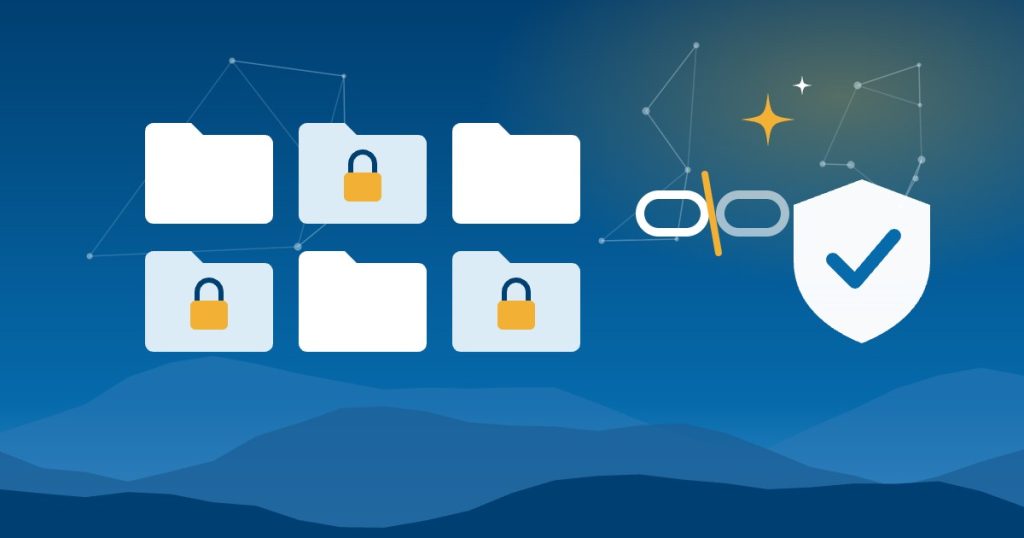
How Copilot decides what people can see
Copilot works through the same permissions as SharePoint, OneDrive, Teams and Outlook. If a person can open a file, Copilot can use it to answer that person’s questions. If they can’t, it won’t. Microsoft also says prompts, responses and the data Copilot reads through Microsoft Graph aren’t used to train its foundation models.
So the risk isn’t Copilot breaking permissions. It’s Copilot making existing permissions visible. A file that was technically open to everyone but buried five folders deep is now one question away.
Step 1: Find and fix Copilot oversharing
In small businesses, Copilot oversharing usually comes from a few places:
- Files shared with “anyone with the link” or with everyone in the organization
- Teams and SharePoint sites that are public, or include the “Everyone except external users” group
- HR, payroll, owner financials and customer records saved in general team sites
- OneDrive files from former employees that were shared broadly
If your organization has at least one Microsoft Copilot license, SharePoint admins get a set of SharePoint Advanced Management features at no extra cost. They include permission reports for sites, OneDrive and files, insights on where “Everyone except external users” is used, sharing link reports and site access reviews. Microsoft’s setup guide suggests running the permission report on your most used sites and turning off “Everyone except external users” at the tenant level.
Step 2: Tighten sharing defaults
Microsoft’s security guidance for small businesses starts with changing the default sharing options in SharePoint and OneDrive. In practice:
- Make the default link “specific people” instead of “anyone” or “people in your organization.”
- Set links that work for anyone to expire, or turn them off if you don’t need them.
- Make Teams and SharePoint sites with sensitive content private, and review their members.
These changes prevent new Copilot oversharing, but they only apply going forward. The reports from Step 1 are how you find the old shares.
Step 3: Protect your most sensitive files
For sites you can’t clean up right away, Microsoft offers Restricted Content Discovery. It hides a SharePoint site’s content from Copilot answers and organization-wide search while you review permissions. It doesn’t change who can open the files, it doesn’t work on OneDrive, and Microsoft describes it as temporary. Think of it as a pause button, not a lock.
What else you can do before a Copilot rollout depends on your plan:
| Control | Business Basic | Business Standard | Business Premium |
|---|---|---|---|
| Exclude files users can’t view from Copilot | Yes | Yes | Yes |
| Block sensitive data users can’t extract | No | Yes | Yes |
| Sensitivity labels that Copilot inherits | No | No | Yes |
| Data loss prevention for files and email | No | No | Yes |
That comparison comes from Microsoft’s small business guidance. If you handle health, financial or legal records, Business Premium’s labels and data loss prevention are worth a close look. Our guide to AI for medical and dental practices covers the HIPAA side.
Step 4: Set up Copilot’s admin controls
A few settings to handle before anyone gets a license:
- Multifactor authentication for every user. Microsoft’s setup guide lists it as a security prerequisite.
- Audit logging. Turn on unified audit logging in Microsoft Purview so you can see Copilot activity later.
- Retention. Decide how long to keep Copilot interactions. All three business plans can apply retention policies to them.
- Copilot settings. In the Microsoft 365 admin center, the Copilot page is where you manage data security, plugins, feedback and web search.
- Update channel. Copilot works on all update channels except Semi-Annual Enterprise Channel. Microsoft recommends Current Channel or Monthly Enterprise Channel.
Step 5: Plan the Copilot rollout in phases
Start with three to five people who’ll actually use it, ideally in different roles. Assign their licenses under Billing, then Licenses, in the admin center. Microsoft notes it can take up to 24 hours for Copilot to appear in some apps. Give the pilot group two or three weeks, gather what worked, then expand.
Microsoft 365 Copilot Business costs $21 per user per month on an annual plan, with a first-year price of $18 for annual plans bought through December 31, 2026. Our comparison of Copilot, ChatGPT, Claude and Gemini covers when Copilot is the right fit, and our AI rollout plan covers training and adoption.
Microsoft 365 Copilot setup checklist
| Task | Where |
|---|---|
| Run permission and sharing link reports | SharePoint admin center |
| Turn off “Everyone except external users” where it isn’t needed | SharePoint admin center |
| Change default sharing links to specific people | SharePoint admin center |
| Restrict discovery for sensitive sites still being cleaned up | SharePoint admin center |
| Require multifactor authentication | Microsoft Entra admin center |
| Turn on audit logging and retention | Microsoft Purview portal |
| Review Copilot settings, including web search | Microsoft 365 admin center |
| Write a short AI use policy | Your handbook |
| Assign licenses to a pilot group | Microsoft 365 admin center |
A one-page AI use policy tells people what Copilot is for and what data stays out of it.
Getting help in Asheville and across North Carolina
Good People Technologies helps with AI implementation for small businesses in Asheville, Western North Carolina and across the state. For Copilot, that usually means the permissions cleanup, sharing settings and pilot rollout described above. To talk it through, start with a free 15-minute operations and technology audit.
Frequently asked questions
Can Copilot see files employees shouldn’t see?
Only if those employees already have permission to open them. That’s the real issue: Copilot makes overshared files easy to find, so fix permissions before rollout.
Does Microsoft use our data to train Copilot?
Microsoft says prompts, responses and data accessed through Microsoft Graph aren’t used to train its foundation models.
Do we need Business Premium to set up Copilot?
No. Copilot is an add-on to Microsoft 365 business plans. Business Premium adds sensitivity labels and data loss prevention, which matter most if you handle sensitive records.
How long does Microsoft 365 Copilot setup take?
The licensing takes minutes. The permissions cleanup takes longer, depending on how much sharing has built up over the years. For many small businesses, that’s days to a few weeks.
Sources, checked November 2026: Microsoft Learn on Copilot data, privacy and security, Copilot setup, securing Copilot for small businesses, SharePoint Advanced Management with Copilot licenses and Restricted Content Discovery, and Microsoft 365 Copilot pricing.

Hi, I’m Benji, founder and CTO of Good People Technologies in Asheville, NC. We help small and mid-sized businesses put AI to work safely and connect it to the systems they already run, from QuickBooks to NetSuite.
For over a decade, we’ve helped businesses solve complex operations and technology problems. When not working, I’m hiking or enjoying rivers in western North Carolina with my wife and two dogs.